

Create a survey on your invitation – ask guests meal selection, allergies, street addresses, shirt size, or get a group consensus. It’s easy to create a poll!
- From MY ACCOUNT, click ENTER DETAILS.
- Scroll down to POLL YOUR GUESTS.
- Fill in the appropriate fields:
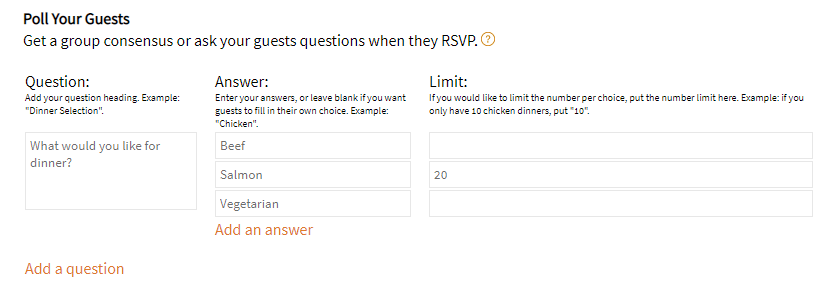
- QUESTION – What do you want your guests to answer?
- ANSWER – Leave blank if you want your guests to type in their own answers. Otherwise, fill in the answer field and then click “Add an answer” to keep adding more possible answers. In our example, we’ve added 3 possible dinner options.
- LIMIT – Only set a limit if you have a limited amount of answers that can be chosen. In our example, we only have 20 salmon dishes available, so we set the limit to 20. Once 20 people have chosen salmon, that option will no longer be available for future guests. For the other choices, they are left blank as we have an unlimited supply of Beef and Vegetarian dishes.
- NOTE – You can keep clicking ‘Add a question’ or ‘Add an answer’ to have multiple questions and/or multiple answers.
- Your guests will now see the poll question(s) when they RSVP to your event.
- Click the SAVE button to save your event without sending it. Or, click the SEND button if you are ready to send the event to your recipients.
You can check your poll answers by going to MY ACCOUNT and click on VIEW POLL RESULTS.
You can also download your poll results to a CSV file by going to VIEW POLL RESULTS then EXPORT TO CSV.
Have more questions that are not listed above? Search our knowledge base.